
CONTINUE A QUOTE YOU ALREADY STARTED
Quote conversion
Bring supported saved quotes into the new system, with a preview before you approve.
The screenshots below use sample quote information. The percentages are examples, not a promise of how much your quote will transfer. Select any image to enlarge it.
New quotes, new system
Starting Monday, November 9, 2026 at 8:00 AM Eastern, create new quotes in our new system. Keep starting from the Agent Portal. Scheduled maintenance runs from Friday, November 6 at 5:00 PM Eastern until Monday at 8:00 AM Eastern.
Which quotes can I convert?
Agency users can convert the following saved quotes, subject to the preview checks:
- Superior Homeowners, Dwelling Fire, and Commercial Package: quotes belonging to your agency in the previous system that are not active policies and have an underlying status of Unsubmitted, Submitted, or Rejected. Unsubmitted quotes can appear in the portal as Started, Quoted, Pending, or Ready to Submit; Submitted and Rejected keep those labels. A rejected quote can be transferred, but conversion does not reverse the rejection or approve the risk.
- Portal commercial applications: your own saved applications using a supported Multi-Location Commercial or Food Service form. There is no separate conversion restriction based on the saved application's status; the form and ownership must qualify.
Not supported: legacy Homeowners (the product named “Homeowners,” rather than “Superior Homeowners”), unsupported portal forms, another agent's portal application, test quotes from the previous system, or active policies. Existing policies follow their normal servicing and renewal process.
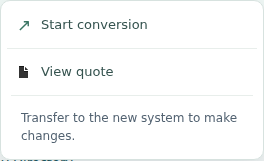
In Quotes, open Actions → Start conversion. Eligibility does not guarantee that a conversion can finish: the preview also checks the source information, producer and effective date. If the quote was already converted, use Conversion details and Open in new system.
If the option is missing, check the product, status and ownership above first. For an unsupported quote, information will need to be entered manually in a new quote; before starting, check for an existing converted quote to avoid duplicates. For a quote that appears eligible or whose status is unclear, send your assigned underwriter the original quote number, product, status and a description of the missing option. Ask for help determining the next step or routing a portal-access or conversion issue to technical support. Contacting an underwriter does not itself enable conversion or override a rejected risk.
Use the guided walkthrough
On a quote page, look for the helpful bubble in the bottom-right corner and choose Walk me through it. It highlights the steps for the quote you choose, explains your preview, and stays with you through the saved result. You stay in control: the guide never approves a conversion for you.
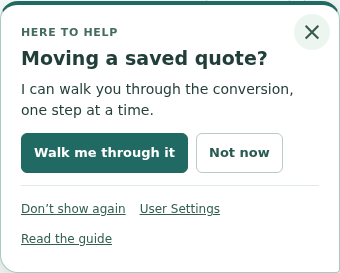
Not now or End guide dismisses it for this browser tab. Don’t show again turns off automatic reminders for your account on this portal, including other browsers and devices.
To bring it back, open your account menu, choose User Settings, set Show conversion guide reminders to On, and save. You can also choose Start walkthrough now there to use it once without changing your reminder setting.
What happens to my original quote and premium?
The quotes list keeps the converted quote in one row. Its New system premium and Original · reference premium are shown separately. The original amount is a reference, not the price of the new quote. Review and rate the new quote before continuing.
Select the original quote number or View original · read-only to see the saved details and original premium. To change an old quote, choose Start conversion, review and approve the transfer, then edit it in the new system.
Preview and convert
- Find your quote. Open Quotes in the portal and find the saved quote or application.
- Choose Start conversion. The preview does not create a new quote. If prompted, select the eligible producer who should own the quote.
- Review the preview. Check the source quote, proposed effective date, producer, estimated transfer, and details you will need to finish. See what the percentage means; it measures source information prepared for transfer.
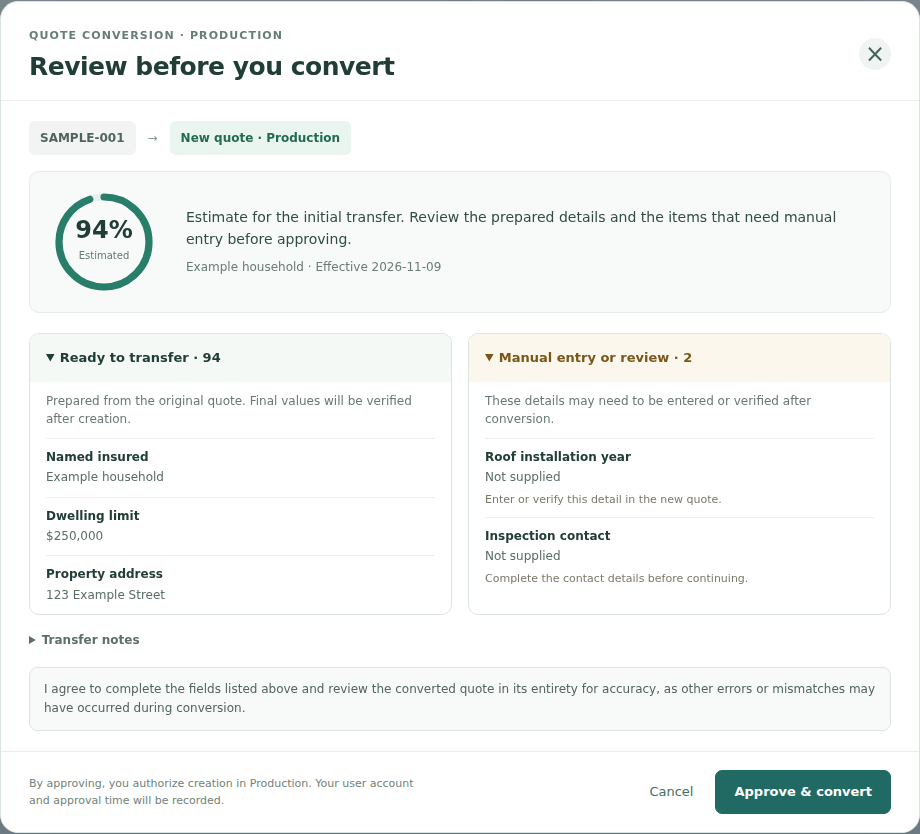
Review before you convert. Compare the ready-to-transfer details with the items marked for manual entry or review. No new quote has been created at this point. - Approve the conversion. Read and accept the acknowledgment, then select Approve & convert. This creates a quote in the new system.

Your approval creates the new quote. Read the acknowledgment before choosing Approve & convert. Choose Cancel to leave without requesting a conversion. - Open and review the new quote. Use Open in new system and complete the remaining information before continuing through your normal quoting and underwriting steps.
Approve & convert creates a quote only. It does not submit an application or bind coverage. You still review, complete and rate the new quote before taking your normal next steps.
What does the percentage mean?
Before conversion: the estimate is the share of assessed, in-scope source information prepared for transfer without a manual-review flag. For example, 94 prepared items out of 100 assessed items gives a 94% estimate. It does not mean that the new quote is 94% complete.
After conversion: the percentage counts the source items the tool could confirm were retained in the saved quote. If it confirms 92 of those 100 items, the result is 92%, even though the preview estimated 94%. Check the listed missing, changed or unverified items.
Each assessed item counts equally; important coverage information does not receive extra weight. Excluded or inactive information is outside the calculation, and loss history must be obtained again and is not counted. Requirements that exist only in the new system are not a measure of source transfer, either.
This is not a premium comparison, an accuracy score, or permission to bind. Even 100% requires your review of the entire new quote and completion of its required information.
Review the result and premium
Conversion details shows what the tool could confirm after saving, plus items to enter or verify. A preview estimate can differ from the saved result. Some information may require manual entry, and loss history must be obtained again.
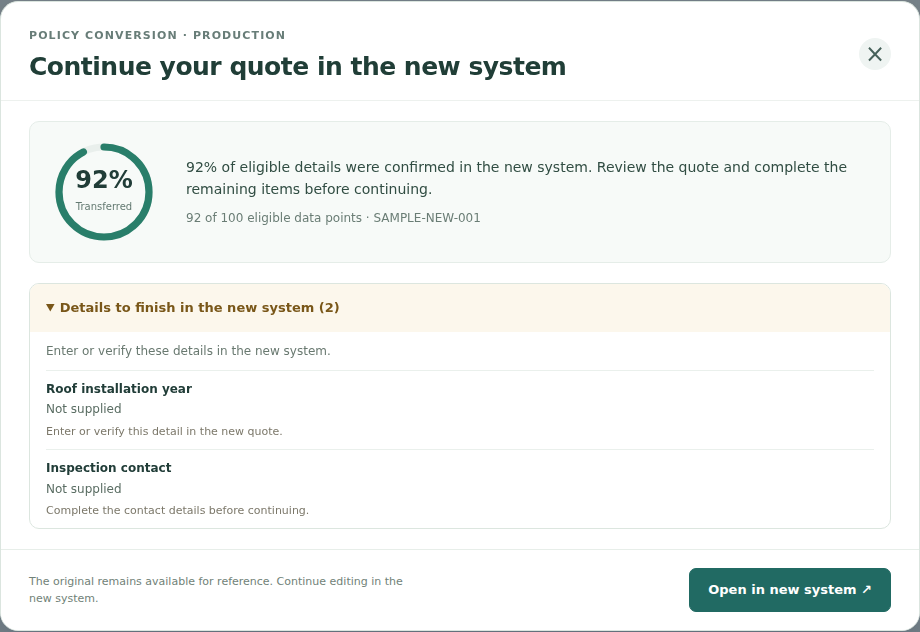
Check insured and contact information, locations, coverages, limits, deductibles, effective dates, producer assignment, and any validation messages. Review all quote information even when the transfer percentage is high.
You review your converted quote
As the agent performing the conversion, review and correct your own quote. Compare the insured, property details, coverages, limits, deductibles, effective dates and premium with the original. Complete missing information, address validation messages and rate the quote in the new system before relying on its premium.
The converted premium may differ. Conversion transfers information; it does not promise the same premium or establish that either amount is correct. Missing or changed details can affect the result. Check and correct those details first. If you cannot explain a premium or coverage difference, or need help with an underwriting question, contact your assigned underwriter with both quote numbers and the specific difference before proceeding to bind.
Your existing binding authority and normal underwriting requirements still apply. Conversion does not introduce a blanket requirement for underwriter approval of Homeowners or Dwelling quotes. The conversion tool does not automatically compare premiums or place a binding hold, so the agent's review is essential.
The original remains available for reference. After conversion, continue editing the new quote. Reopening a completed conversion takes you back to the saved result instead of creating another quote.
Can I delete a converted quote and start again?
If you converted the quote, or you are a Farmers Fire department head or administrator, open its Actions menu and choose Delete converted quote. The link is also available in Conversion details. Only an In Process quote is eligible; applications and bound policies cannot be deleted here.
- Make sure no one is editing the converted quote. If someone holds editing ownership, have them finish and release it first.
- Enter a reason, then choose Review deletion.
- Read the confirmation, type the new quote number, and confirm the deletion.
- Wait for Converted quote deleted. Return to Quotes, find the original, and choose Start conversion to review a fresh transfer.
Edits to the converted draft will be lost. Added properties and other changes will not carry into the next conversion. The original quote and audit history remain. A fresh conversion uses the current mapping rules but may still need manual completion.
If deletion cannot be confirmed, choose Check current result or contact IT. That check does not resend the delete request. Another conversion stays blocked until deletion is verified. If the assigned agent changed after conversion, contact IT for review.
If you need help
No matching producer or no conversion option? Check which quotes qualify, then contact your assigned underwriter with the quote number and the exact message if you need help. Do not select an unrelated producer or create a duplicate just to bypass the issue.
Transfer not confirmed? Reopen Conversion details or refresh the page to check the saved status. If the result remains uncertain, contact your Underwriter before starting another quote. A connection problem can occur after a quote has already been created.
“Quote created — items to finish”? Your draft was saved. Where possible, unsupported or unanswered fields are left for you to complete instead of stopping the transfer. The checklist identifies details to enter or check; the percentage shows information transferred, not whether the quote is ready to bind. You do not need to convert again. Follow the steps for moving between the two quotes, review the listed items, and enter or correct the information in the new quote. Contact your Underwriter if you cannot continue.
Include the original quote number and any new quote number when requesting help. For sign-in assistance, call 717-751-4435.