
ACCOUNT SETUP
Connect your FFIC
Entra account
One account for Farmers Fire platforms. A more secure way to sign in.
Connect Microsoft Entra to your existing Farmers Fire Portal account by following the steps below. Microsoft Entra is the sign-in service behind the FFIC Entra account buttons you see in the portal.
Farmers Fire will be moving to a new system shortly. An FFIC Entra account will be required for quoting. Please complete your setup now so you are ready for the transition.
Meet compliance requirements
This setup is a Farmers Fire compliance requirement.
Add another layer of protection
Entra supports multifactor authentication (MFA) to help protect your account and customer information.
Use the same account
Sign in to participating Farmers Fire platforms with the same account.
Before you begin
- Have your current portal email address and password ready.
- Make sure you can open the inbox for that email address.
- Have your phone available if Microsoft asks you to set up or approve verification.
Use the same email address throughout. The Entra account you connect must match the email address on your portal account.
Sign in to the portal
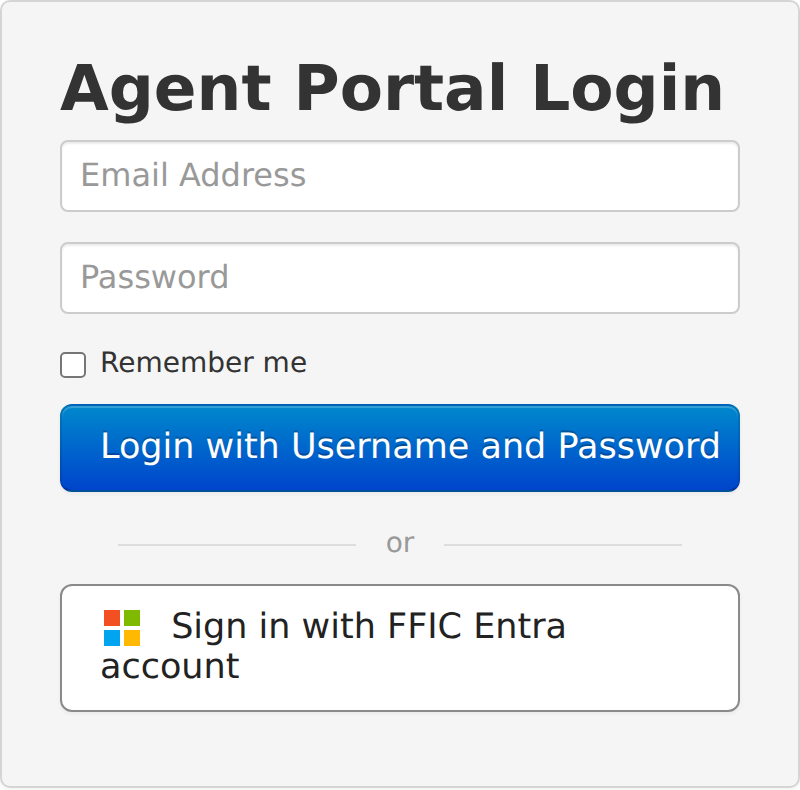
Open portal.farmersfire.com and use Login with Username and Password with your existing portal credentials.
After you sign in, look for the Connect FFIC Entra Sign-In popup. If you already closed it, open the menu with your name at the top of the portal, choose Edit Profile, and find FFIC Entra Sign-In.
Choose your setup path
Check the email address shown in the popup, then choose the option that applies to you.
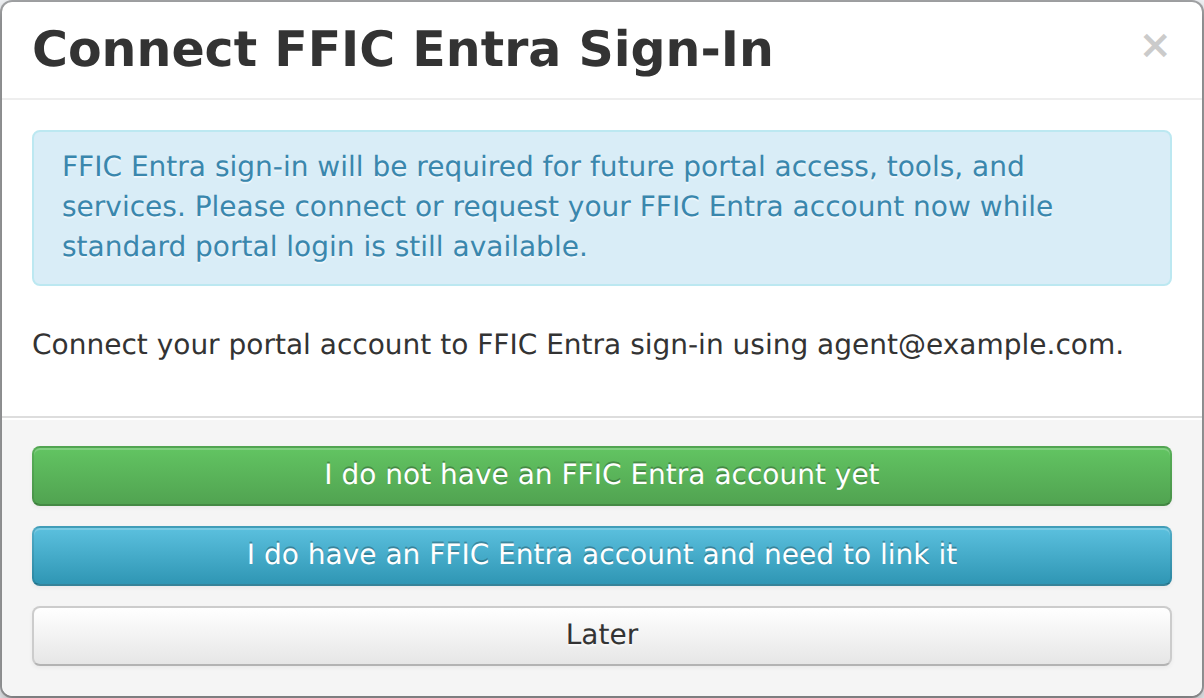
I do not have an FFIC Entra account yet
Select this green button to request an invitation at your portal email address. Continue to step 3.
I do have an FFIC Entra account and need to link it
If you already have access to Farmers Fire through Entra, select this blue button. Sign in with the matching email address, complete verification if prompted, and continue to step 5.
Using Microsoft 365 at your agency does not necessarily mean you already have access to Farmers Fire. If you have not been invited to Farmers Fire, use the invitation option.
Accept your invitation
- Open the inbox for the email address on your portal account.
- Open the Microsoft invitation for Farmers Fire and follow its invitation link.
- Use that same email address to sign in. Depending on your account, Microsoft may ask for your existing credentials or send a one-time code to your email.
- Review the requested access and accept the invitation to continue.
No email? Check your junk or spam folder. The portal’s invitation confirmation may also offer an open the invitation directly link.
Keep going after accepting. Accepting the invitation alone does not confirm your portal connection. Complete the connection check in step 5.
Complete Microsoft verification
If Microsoft asks for more information or prompts you to keep your account secure, follow the setup instructions. Available methods depend on your account and your organization’s requirements.
If prompted to use Microsoft Authenticator:
- Install Microsoft Authenticator on your phone, then select Next on your computer.
- In the app, add a Work or school account and scan the QR code displayed during your own setup.
- Complete the test prompt, including entering a number if requested, then continue until setup is confirmed.
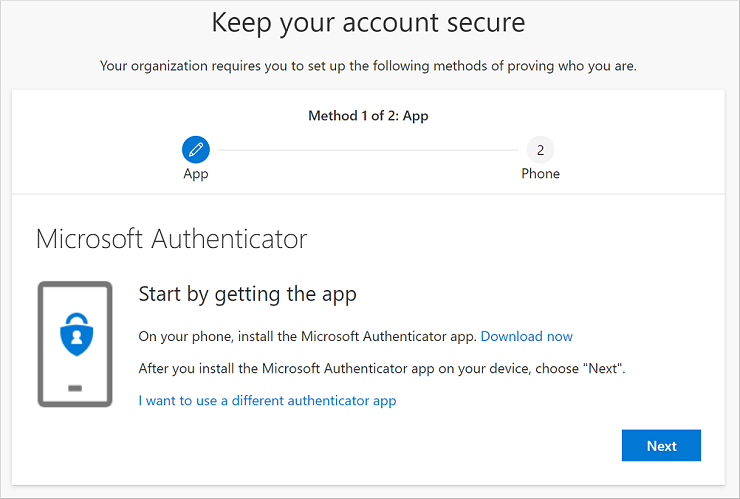
If verification is already set up, complete any sign-in prompt and continue. Only approve requests you initiated, and never share verification codes.
Connect and confirm
Return to the Farmers Fire Portal. If your account is not yet connected, choose I do have an FFIC Entra account and need to link it in the popup or the FFIC Entra Sign-In section of Edit Profile. Complete Microsoft sign-in with the same email address as your portal account.
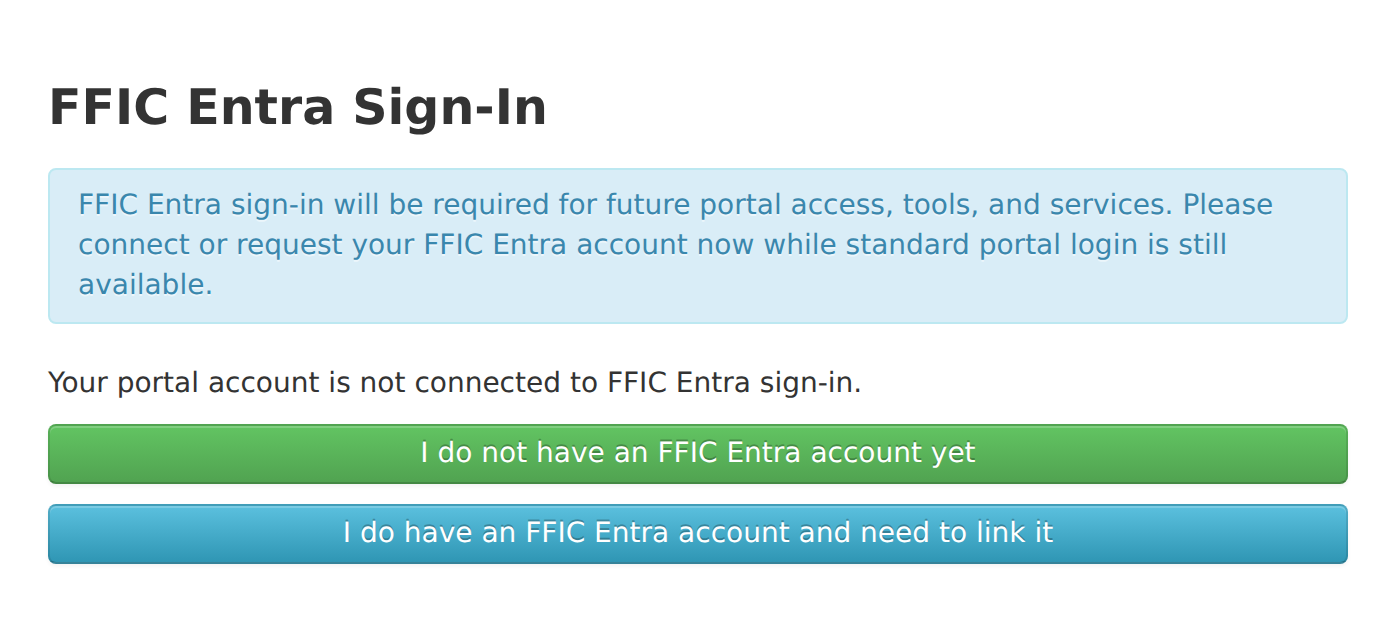
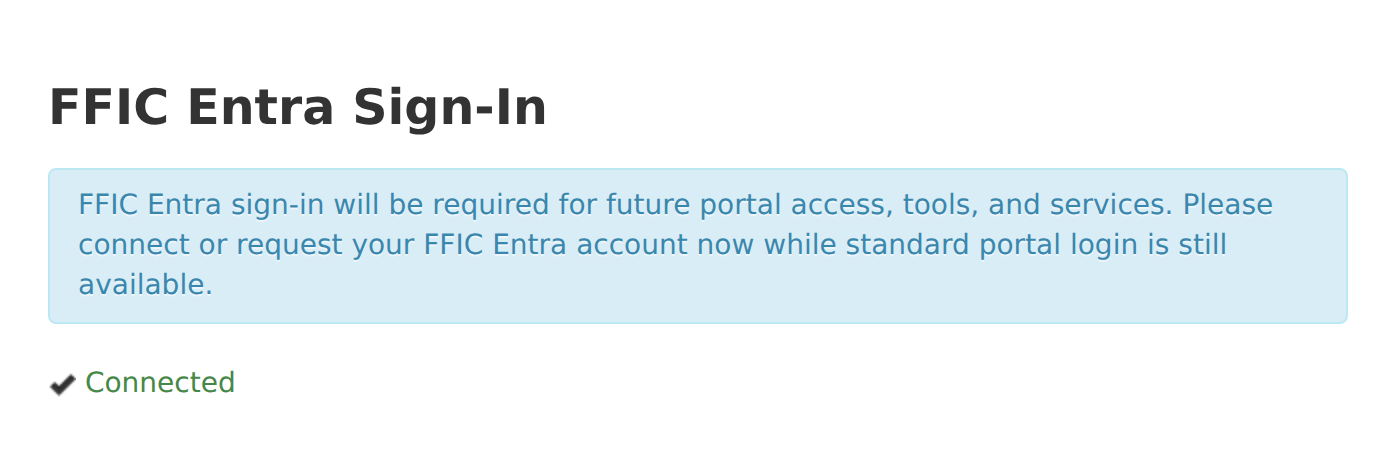
After a successful connection, the portal shows FFIC Entra sign-in is now connected to your portal account. In your profile, look for the green Connected status.
Use Entra the next time you sign in
Sign out of the portal, return to the login page, and choose Sign in with FFIC Entra account. Select your linked account and complete any verification prompt.
You are ready when
- Your profile shows Connected.
- You can sign back in using Sign in with FFIC Entra account.
You will use this account for quoting when the new system becomes available.
Need help?
I did not receive an invitation
Check your junk or spam folder and confirm the email address shown in the portal. If the invitation confirmation offers open the invitation directly, use that link. Contact Farmers Fire if you still cannot continue.
Microsoft selected the wrong account
Choose Use another account when offered, and sign in with the email address on your portal account. You can also retry in a private browser window to avoid a saved Microsoft sign-in.
The email addresses do not match
The Entra account email must match your portal account email. Return to sign-in and choose the correct account. Contact Farmers Fire if the email on your portal account needs to be corrected.
I accepted the invitation but still see the setup popup
Return to step 5 and link the account. Accepting an invitation and connecting your portal account are separate steps.
I cannot complete verification or see an account error
For a lost phone or problems with your agency-managed Microsoft account, contact your agency’s IT support. For an unavailable invitation, an account already connected elsewhere, or no matching active portal account, contact Farmers Fire.
Contact Farmers Fire
Call 717-751-4435 or use the company directory. Have your portal email address and the error message ready. Do not send passwords, verification codes, or setup QR codes.
Portal screenshots use sample account details. Microsoft sign-in screens vary by account. For more about accepting an invitation, see Microsoft’s invitation guide.